Modifying WebSocket Messages
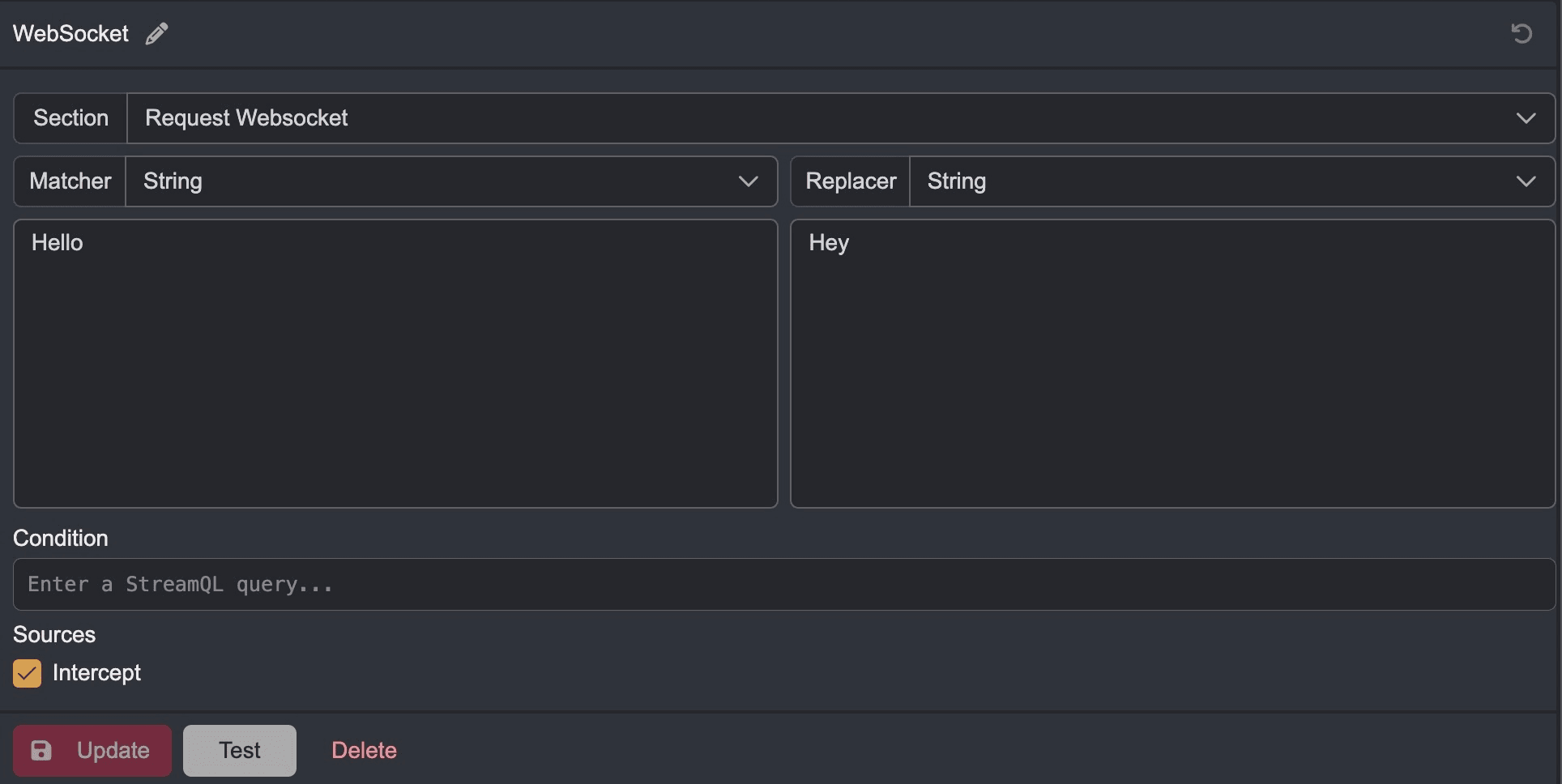
To modify an outgoing or incoming WebSocket message, click on the Section drop-down menu and select either Request Websocket or Response Websocket.
Next, select an option from the Matcher drop-down menu to specify what data to modify:
Full: The entire message.Regex: Matches a value determined by a regular expression.String: Matches a string value.
Then, specify the replacement value in the Replacer input field.
Select the traffic source/s and click on the + Add button to add the rule to the Default Collection.
TIP
Give rules descriptive names for quick identification of their purpose.
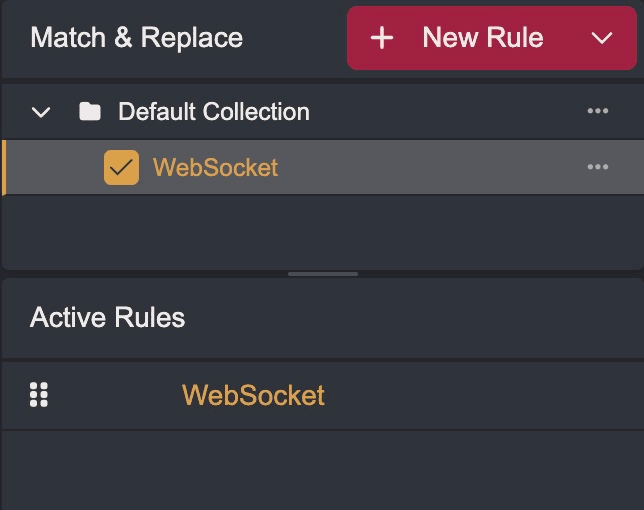
To enable the rule, click on its associated checkbox. Applied rules will be listed in the Active Rules table.
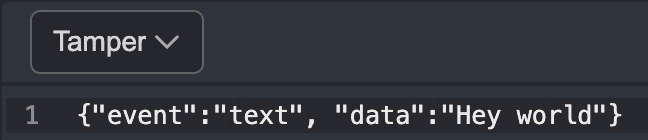
To view the modified message, within the WS History interface click on the Original button above a message and select Tamper.