
Sending Payloads from a Wordlist
To use a wordlist of payload values, click, hold, and drag over the request element you want to replace and then click on the + Add Placeholder button.

Once a placeholder has been marked, you will be presented with options in the Payload tab. From the Type drop-down menu, select either:
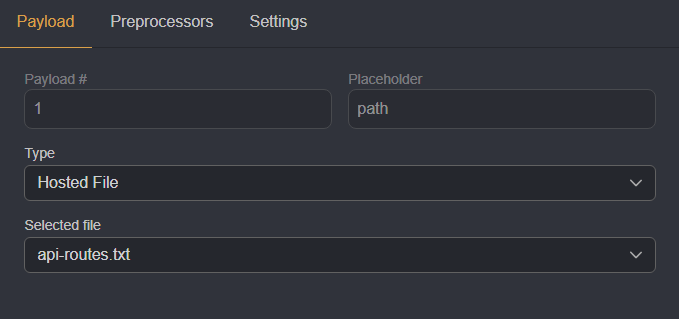
Hosted File: This option will present aSelected filedrop-down menu from which you can select a wordlist that you have uploaded to your Caido instance.
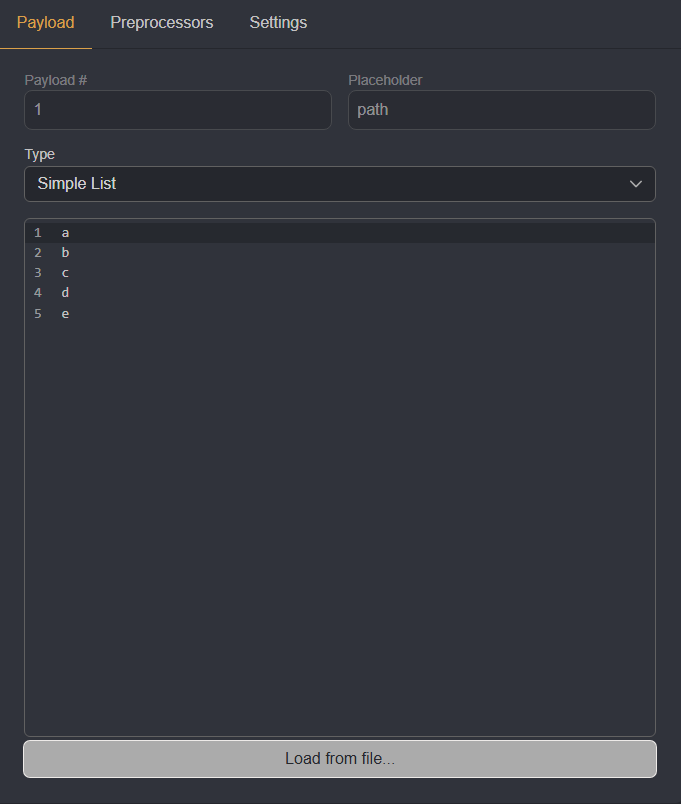
Simple List: This option will present an input field that allows you to manually type in a wordlist, one payload per new line. You can also load a wordlist file directly by clicking on theLoad from file...button.
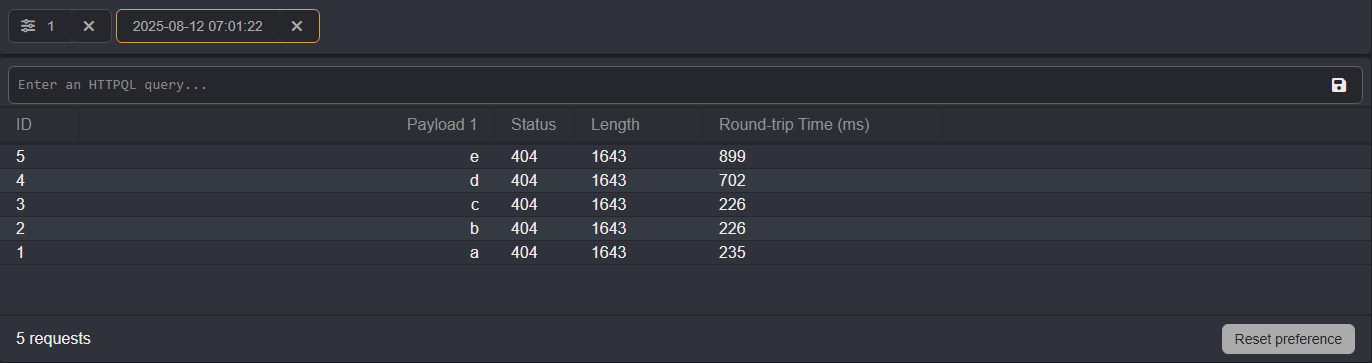
Once a selection has been made, click on the Run button to launch the Automate session. A new tab will be generated that contains a traffic table of the payload requests. To view the results of the session, click on this paired tab.
INFO
If Close Connection is disabled in the Settings tab, the TCP connection is maintained through the session until it is terminated by the server.