
Using the Caido Browser Extension
Caido's browser extension gives you the ability to quickly enable/disable your browser's use of Caido as a proxy.
Firefox
To install the browser extension, launch the Firefox browser, navigate to https://addons.mozilla.org/en-US/firefox/addon/caido-extension/, and click on the Add to Firefox button.
In the pop-up window, select Allow extension to run in private windows, and then click on the Add button.

In the subsequent pop-up window, click on the OK button.

Once the extension is installed, continue to the configuration instructions.
Configuring the Caido Browser Extension
Click on the Caido Extension toolbar button.
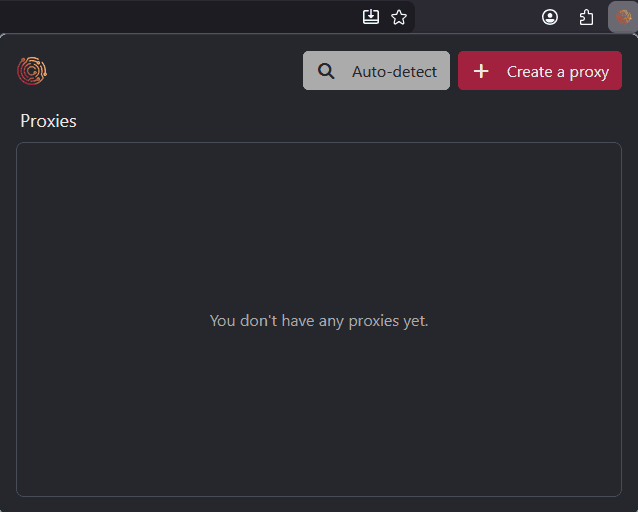
Automatic Configuration
To automatically detect the proxy settings of your instance and create a configuration, launch Caido and click on the Auto-detect button.
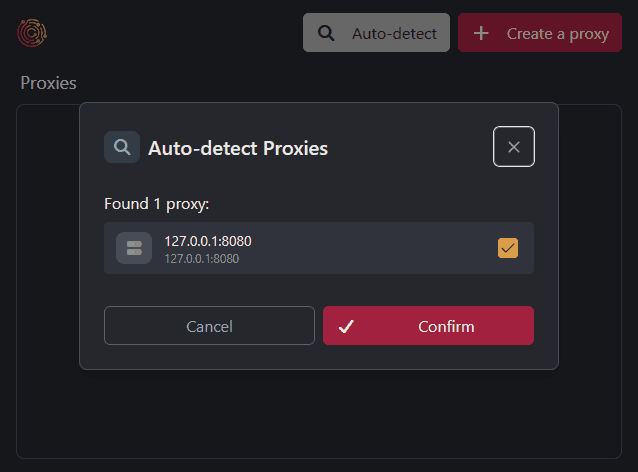
Click on the Confirm button to save the configuration.
Manual Configuration
To manually create a configuration, click on the + Create a proxy button.
In the configuration interface, give an arbitrary name to the proxy configuration in the Name input field, and set the following settings:
Host:127.0.0.1Port:8080
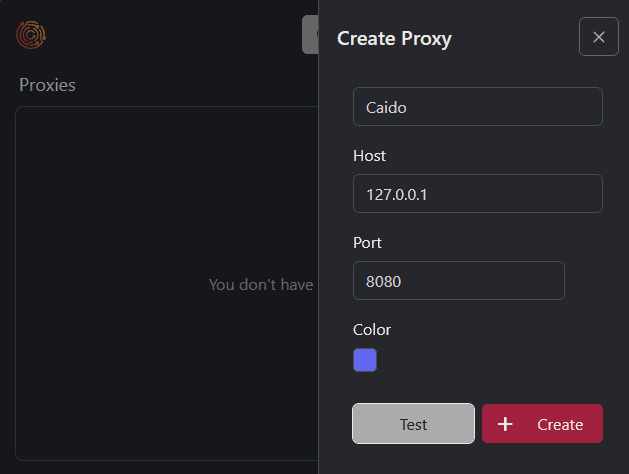
Once the configuration is set, click on the + Create button.
Enabling/Disabling Proxying
To enable proxying to pass web traffic through Caido, click on the Caido Extension toolbar button and click on the sliding radio button.

To disable proxying, click on the sliding radio button to remove its fill.