
Using LiteLLM with Shift
LiteLLM is an open-source proxy/gateway that provides a unified interface for accessing multiple LLM providers.
In this tutorial, you will learn how to configure LiteLLM, Caido, and Shift to use models from various providers that are not directly supported.
LiteLLM Configuration
The following Docker Compose file runs two services: LiteLLM and a PostgreSQL database for chat history persistence.
- Save the following
docker-compose.ymlfile and navigate to its directory:
yml
services:
  litellm:
    build:
      context: .
      args:
        target: runtime
    image: ghcr.io/berriai/litellm:main-stable
    ports:
      - '4000:4000'
    environment:
      LITELLM_MASTER_KEY: sk-admin-key-1234567890
      DATABASE_URL: 'postgresql://llmproxy:dbpassword9090@db:5432/litellm'
      STORE_MODEL_IN_DB: 'True'
      STORE_PROMPTS_IN_SPEND_LOGS: 'True'
    depends_on:
      - db

  db:
    image: postgres:16
    restart: always
    container_name: litellm_db
    environment:
      POSTGRES_DB: litellm
      POSTGRES_USER: llmproxy
      POSTGRES_PASSWORD: dbpassword9090
    ports:
      - '5439:5432'
    volumes:
      - postgres_data:/var/lib/postgresql/data

volumes:
  postgres_data:
name: litellm_postgres_data- With Docker running, enter the following terminal command:
bash
docker-compose up
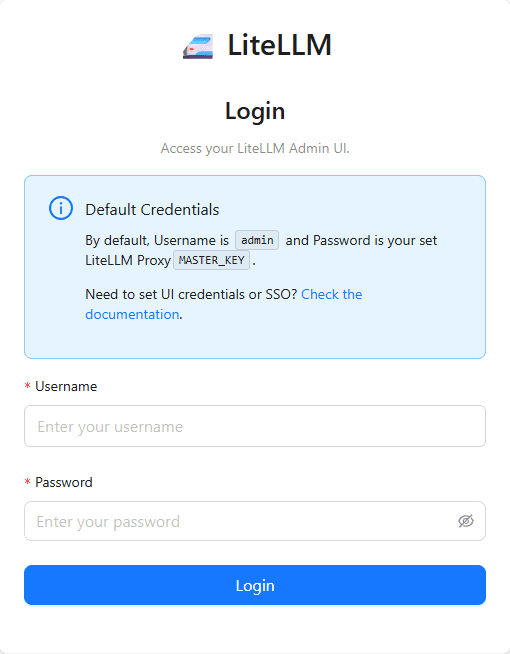
- Navigate to http://localhost:4000/ui/login/ in your browser and login.
- Select
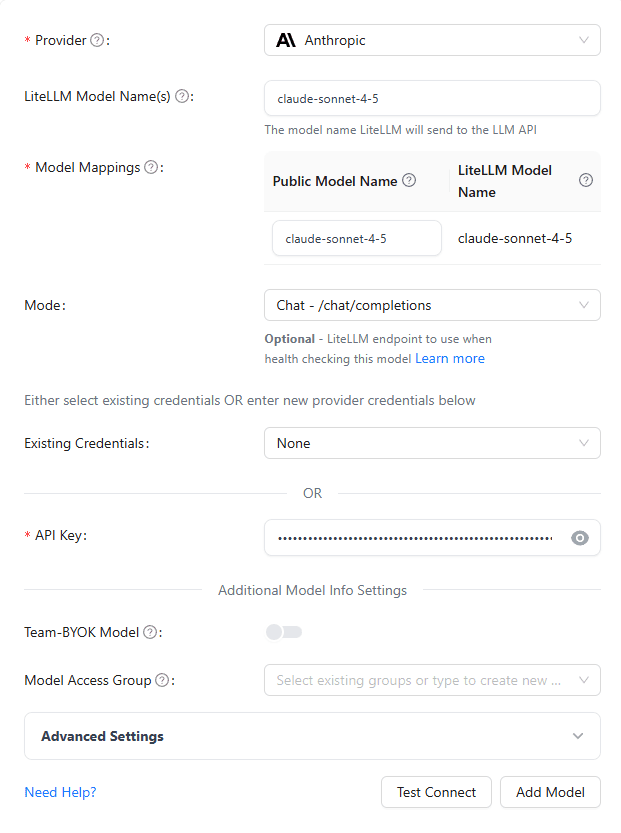
Models + Endpoints,Add a Model, configure your model provider details, and click on theAdd Modelbutton to save the configuration.
- Next, select
Virtual Keys, click on the+ Create New Keybutton, configure the key, and click on theCreate Keybutton to save the configuration.

Caido Configuration
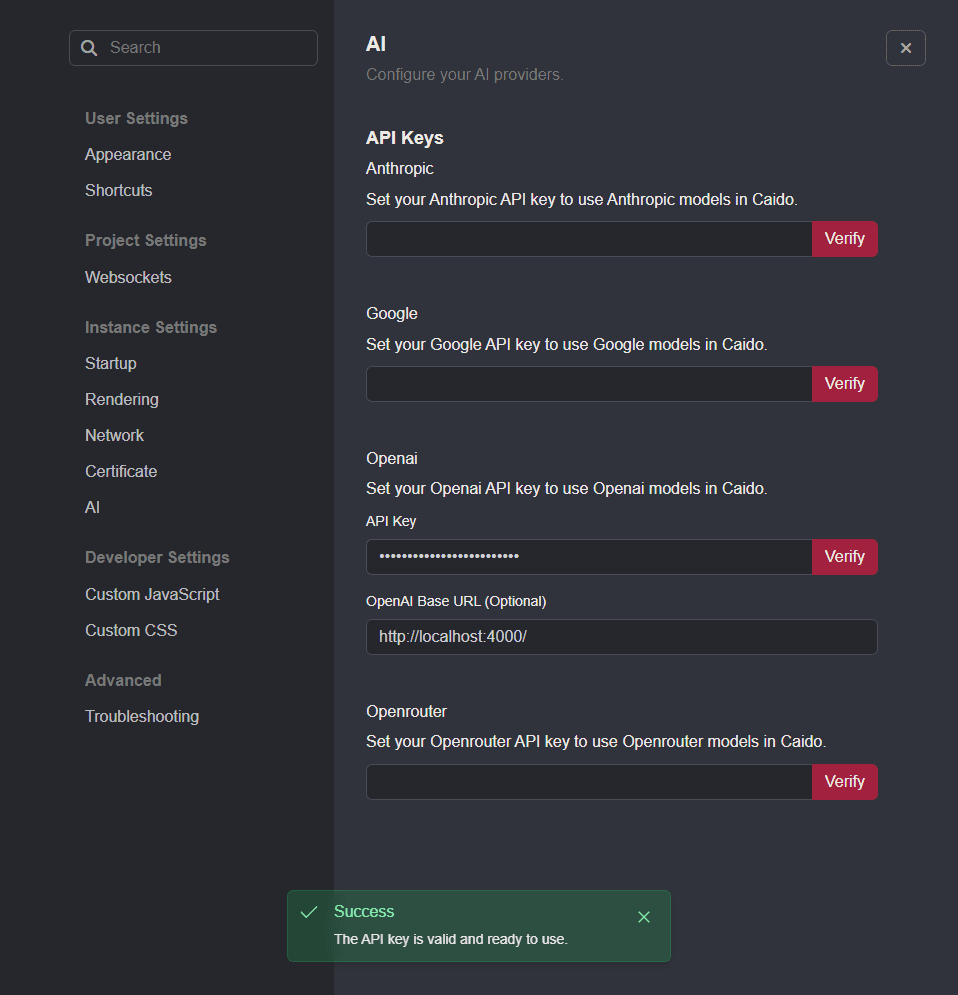
- Click on the account button
in the top-right corner of the Caido user-interface, selectSettings, and open theAItab. - Add your virtual key to the
OpenAI API Keyfield and the listening address of LiteLLM in theOpenAI Base URL (optional)field.
Shift Configuration
- Next, navigate to the
Modelsinterface of Shift, selectOpenAIfrom the drop-down menu, and click on the+ Add Custom Modelbutton. - In the pop-up window, select
OpenAIfrom the drop-down menu, enter the alias of the model you created in LiteLLM, and provide theModel IDusing the following syntax:
txt
openai/<model>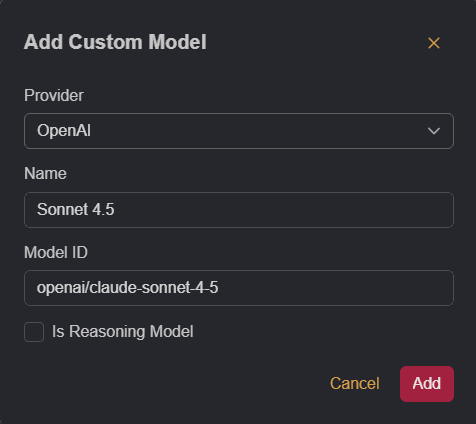
Click on the
Addbutton to save the configuration and then click on its sliding radio button to enable the model.Once the model has been added, it will be available as an option in Shift's model selection drop-down menu.
