Using Caido Skills
In this tutorial, you will learn how to use Caido Skills to integrate Caido with AI agents.
Agent Skills
Agent Skills is an open standard for extending the capabilities of AI agents.
At its most basic, a skill is a folder that contains a SKILL.md file. The file begins with a "frontmatter" header that provides basic information to a AI agent. The two required fields of a frontmatter header are the skill name and a brief description of what the skill does and when it should be used.
---
name: my-skill
description: This skill does XYZ and should be used when a user prompt begins with "Run my-skill".
---
Once the frontmatter is written, the instructions of the skill can be defined in Markdown format in the rest of the file.
---
name: my-skill
description: This skill does XYZ and should be used when a user prompt begins with "Run my-skill".
---

# My Skill

At a high-level this skill...

## Step-by-Step Instructions

1. Start with...
2. ...
3. ...

## Examples

An example use case of this skill is...
In addition to instructions defined in a SKILL.md file, a skill folder can also include categorical sub-folders for additional content to provide an agent with like scripts, references, and assets.
These can then be referenced in the SKILL.md file using relative paths from the skill folder root.
View examples of skill folders.
Caido Skills
The official Caido Skills provides AI agents with the Caido Client SDK, giving agents the ability to connect, authenticate, and interact with an instance programmatically.
Caido Skills provides complete coverage of Caido's API, allowing you to instruct AI agents to carry out tasks that you would normally have to do manually such as send HTTP requests with Replay, fuzz payloads with Automate, search for proxied traffic, and more.
View a complete list of capabilities.
Claude Code
NOTE
In this tutorial we will cover adding Caido Skills using the Claude Code CLI tool.
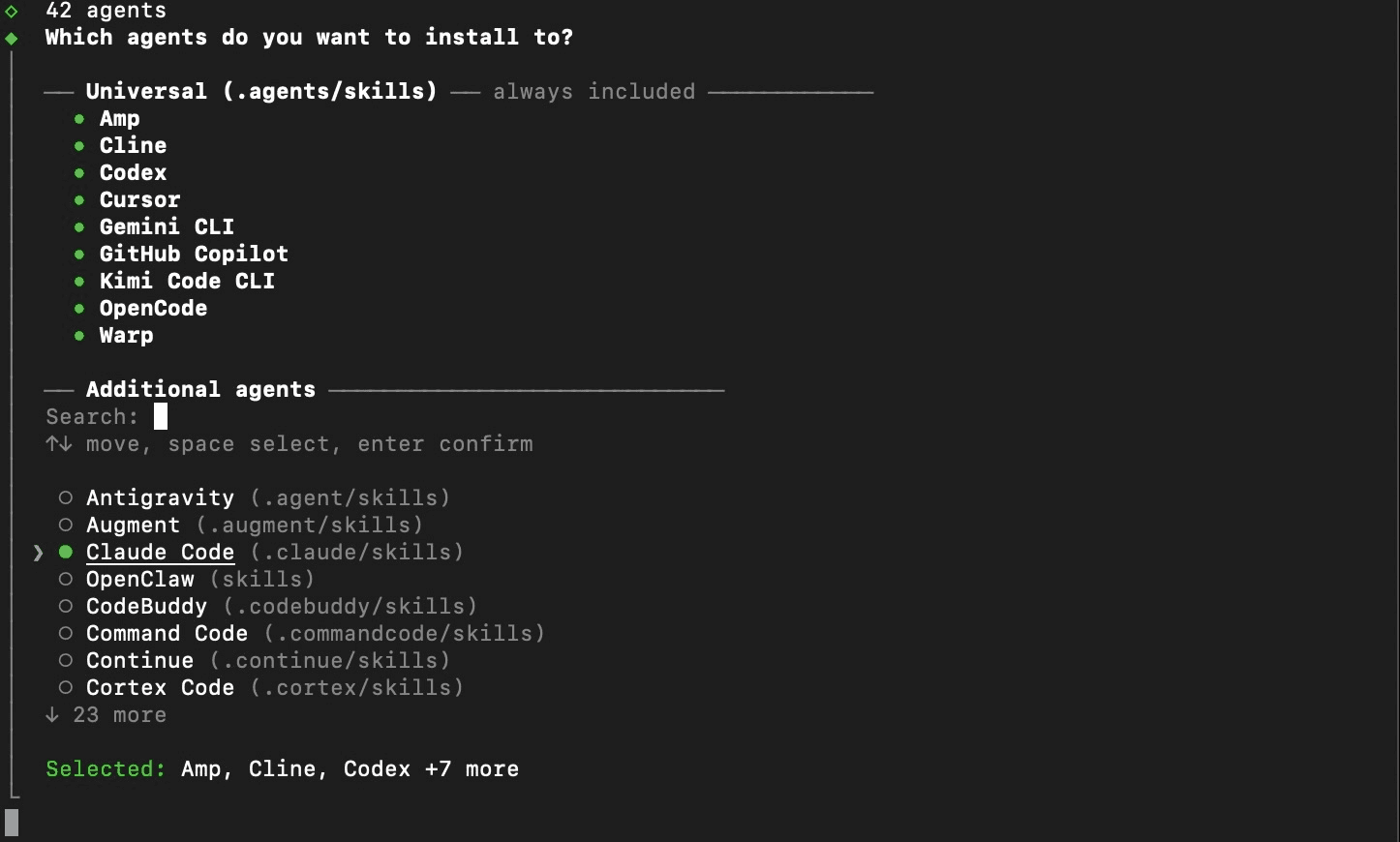
However, the skill package is available to other AI agents. A full list of available agents is available following the Which agents do you want to install to? prompt of the installation.
Claude Code is an AI agent designed to work within a project to assist with development. Once Claude Code, is granted access to a project, it is able to read, edit, and execute its files - making it skill compatible.
View the official documentation for instructions on how to install the Claude Code CLI tool.
Configuration & Installation
To make the Caido Skills available to the Claude Code CLI tool:
- Create a new project (e.g.
my-project) to store the Caido Skills package.
mkdir my-project- Navigate to the project directory.
cd my-project- Add Caido Skills to the project.
pnpx skills add caido/skills --skill='*'Or:
pnpm dlx skills add caido/skills --skill='*'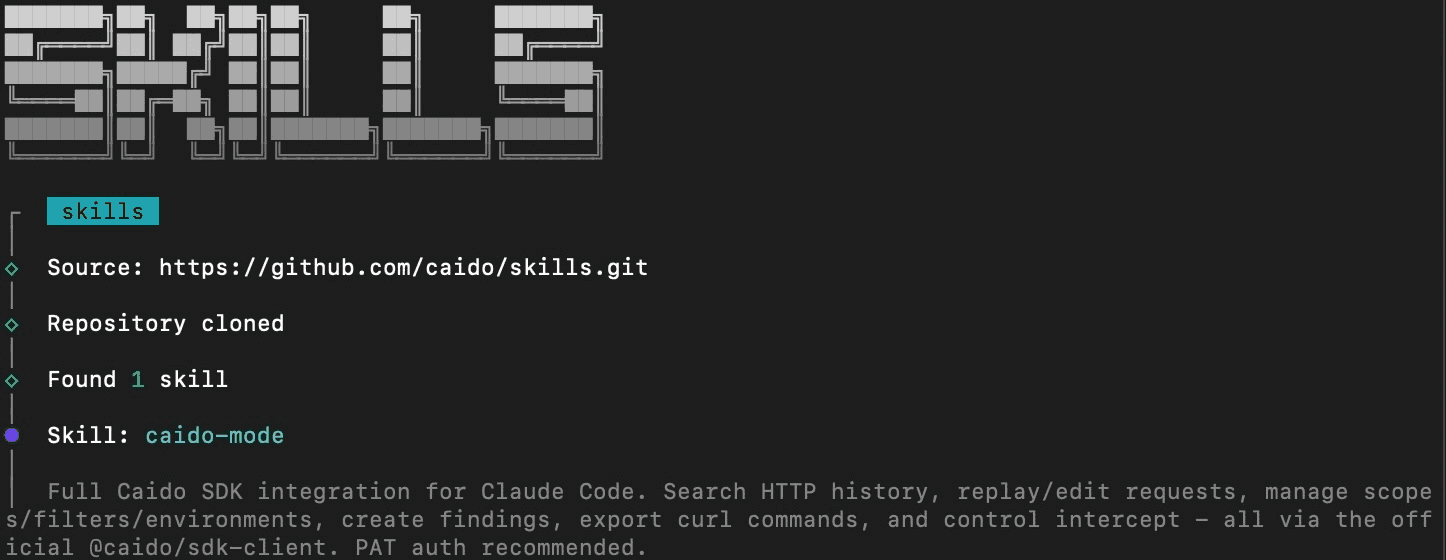
- When prompted, use the down arrow key and spacebar to select
Claude Codeand pressENTERto add it as an additional agent.
- Select either the
ProjectorGlobalinstallation scope.

- Select the
Symlinkinstallation method.

WARNING
Before proceeding with the installation, ensure to review and assess any messages displayed as Security Risk Assessments.
- To proceed with the installation, select
Yesand pressENTER.

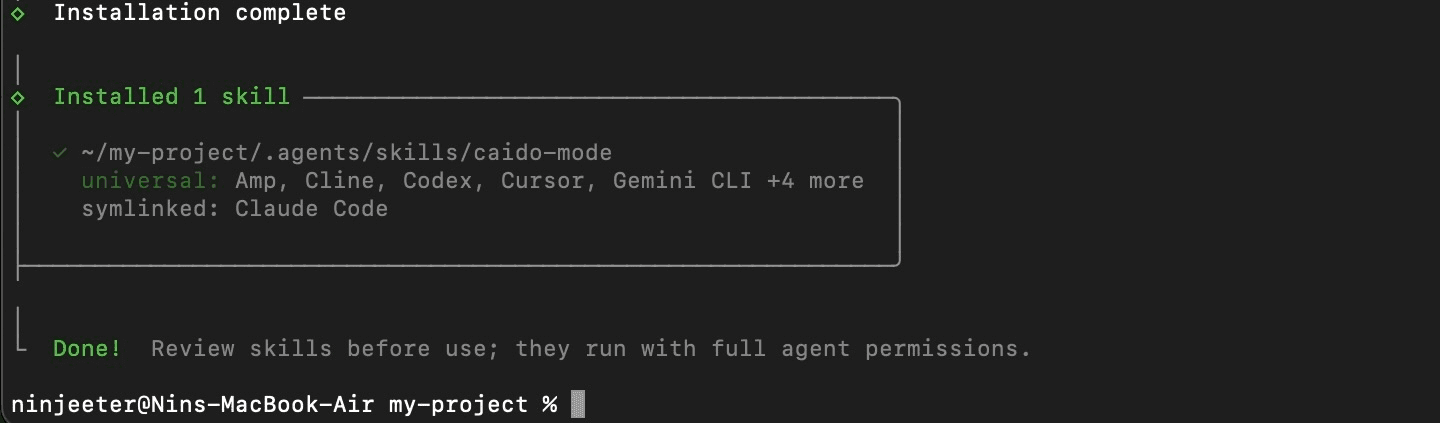
- Navigate to the
caido-modedirectory.
cd .agents/skills/caido-mode/- Install the dependencies.
npm install
Authentication
To authenticate to your Caido instance:
INFO
Typically, authentication requires user interaction (clicking Login, submitting account credentials, and granting your device authorization to access an instance). With a PAT, authorization is granted immediately, and the PAT is exchanged for an access token and a refresh token.
A custom SecretsTokenCache (implementing the SDK's TokenCache interface) persists these tokens to secrets.json file in ~/.claude/config so they survive across CLI invocations.
- Execute the
setupcommand and provide the PAT.
npx tsx caido-client.ts setup "<PAT>"Connecting to http://localhost:8080...
[caido] Attempting to load cached token
[caido] Starting authentication flow
[caido] Authentication flow completed
[caido] Saving token to cache
Authenticated as: 01HWVM3E34S2G1BKHWB9ACEHK3
Saved to /Users/ninjeeter/.claude/config/secrets.json
URL: http://localhost:8080
PAT: caido_8yWtyz...
Access token: cached- To verify the authentication, execute the
auth-statuscommand.
npx tsx caido-client.ts auth-status[caido] Attempting to load cached token
[caido] Loaded token from cache
{
"authenticated": true,
"user": {
"kind": "CloudUser",
"id": "01ABCD2E34F5G6HIJKL7MNOPQ8",
"profile": {
"identity": {
"email": "user@example.com",
"name": "User Name"
},
"subscription": {
"plan": {
"name": "Individual"
},
"entitlements": [
{
"name": "feature:assistant"
},
{
"name": "feature:automate_workflows"
},
{
"name": "feature:export_filtered_requests"
},
{
"name": "feature:export_unlimited_findings"
},
{
"name": "feature:project_backups"
},
{
"name": "feature:replay_workflows"
},
{
"name": "feature:search_bar"
},
{
"name": "feature:unlimited_environments"
},
{
"name": "feature:unlimited_filter_presets"
},
{
"name": "feature:unlimited_plugins"
},
{
"name": "feature:unlimited_projects"
},
{
"name": "feature:unlimited_workflows"
},
{
"name": "node:advanced"
},
{
"name": "support:discord_role"
}
]
}
}
},
"health": {
"name": "caido",
"version": "0.55.3",
"ready": true
},
"url": "http://localhost:8080"
}- Navigate to the project directory.
cd ../../../- Launch the Claude Code CLI.
claude- Grant access to the project directory.
 Quick safety check: Is this a project you created or one you trust? (Like your own code, a well-known open source project, or work from your team). If not, take a moment to review what's in this folder
 first.

 Claude Code'll be able to read, edit, and execute files here.

 Security guide

 ❯ 1. Yes, I trust this folder
   2. No, exit

 Enter to confirm · Esc to cancel
NOTE
Assess and accept any security prompts encountered to continue.
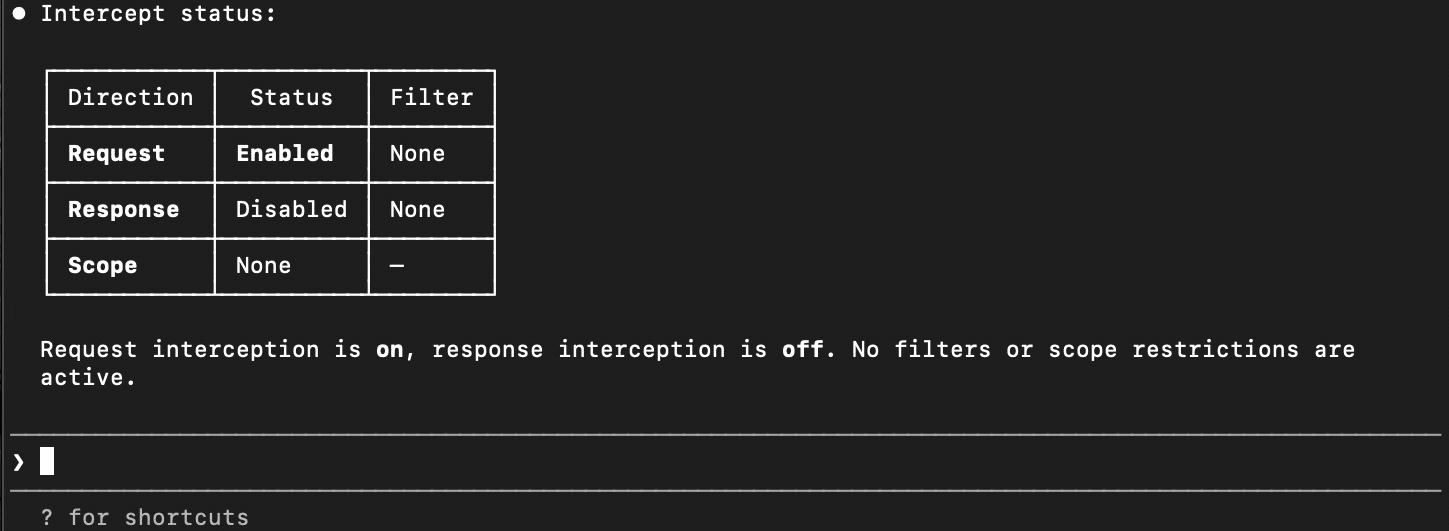
- With Caido launched, test the Caido Skills integration.
Check the interception status of Caido.